

Report
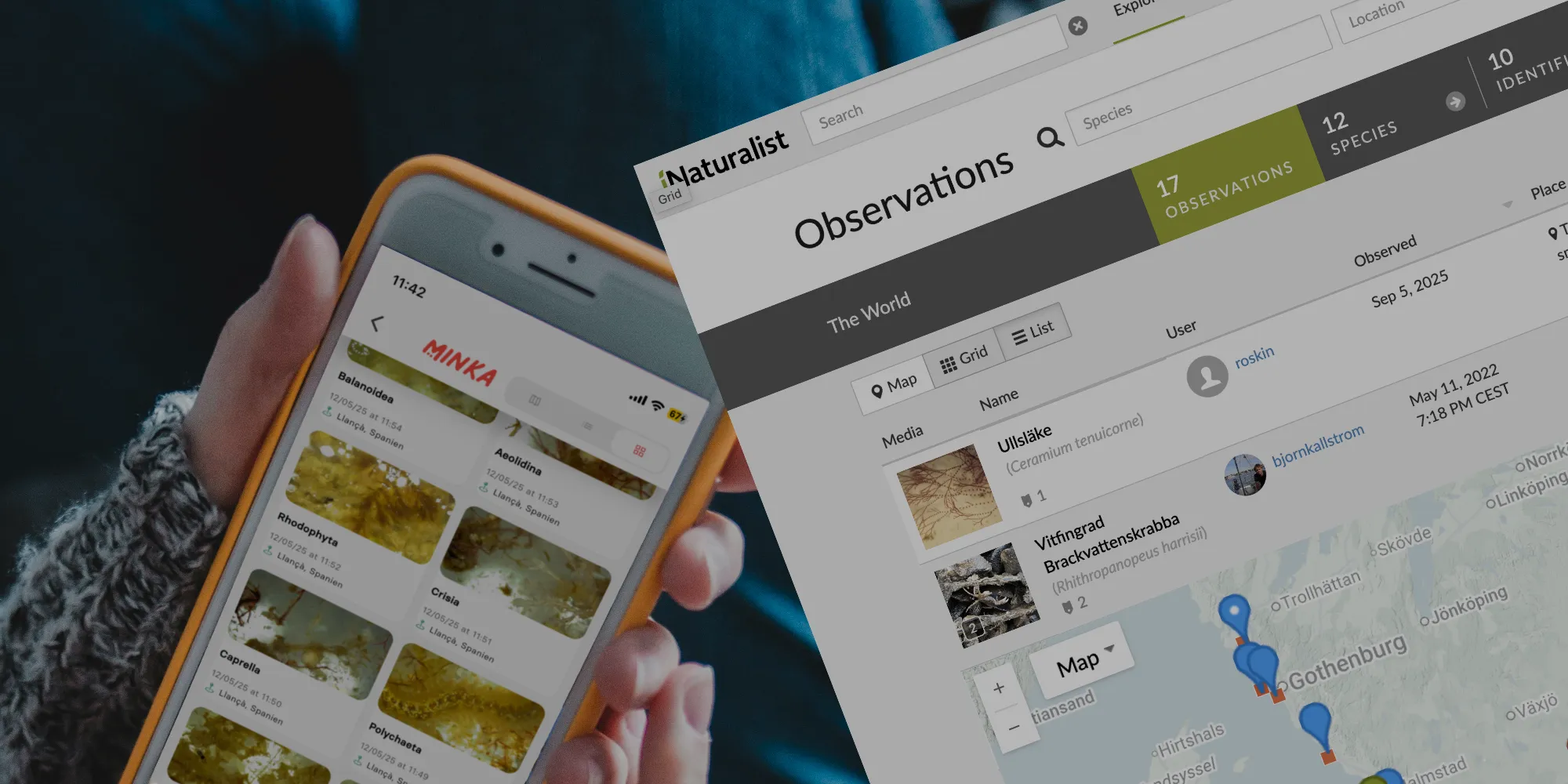
The third and final step is to report your findings. In the BiodivOcean project, we use two open online platforms for reporting observations: iNaturalist or MINKA.
On our website, we have a page where observations submitted by participants in the project are displayed:
https://www.biodivocean.eu/observations
Here you can find observations of species found on the rack discs in different parts of the world.
If you want to participate, you can easily submit your own observations. We use two open online social networks for naturalists, citizen scientists and biologists: iNaturalist and MINKA.
Both platforms are built using open-source software. iNaturalist is based in the United States, is used worldwide and is available in many languages. MINKA is based on iNaturalist and is hosted in Europe as an alternative. The two platforms work in much the same way.
One of the advantages of these platforms is that you can submit observations even if you are unsure about the species identification. The community can help you identify what you have found, and volunteer experts are available to assist. iNaturalist also provides an AI-based identification tool that can suggest possible species.
You can use iNaturalist or MINKA on a computer or through their mobile apps.


(Please note: On iOS, use the iNaturalist Classic app.)


We have created a BiodivOcean project on both platforms.
When someone submits an observation and adds it to our BiodivOcean project, the observation will also appear on:
https://www.biodivocean.eu/observations
There you can filter the observations to find the ones you are interested in. Our observations page will continue to be developed throughout the project.
You can also use the iNaturalist and MINKA websites themselves to see what is happening within the BiodivOcean project.
Getting started
1. Create an account
Create your own account at: https://www.inaturalist.org/ or: https://minka-sdg.org/home
You can also create an account using their mobile apps.
Once you have created an account, you can immediately start reporting anything you find in nature.
An observation normally starts with a photograph. Take a photo with your phone or camera, upload it, add a few details, and you are done.
2. Join our BiodivOcean project
Your observations need to be added to the BiodivOcean project.
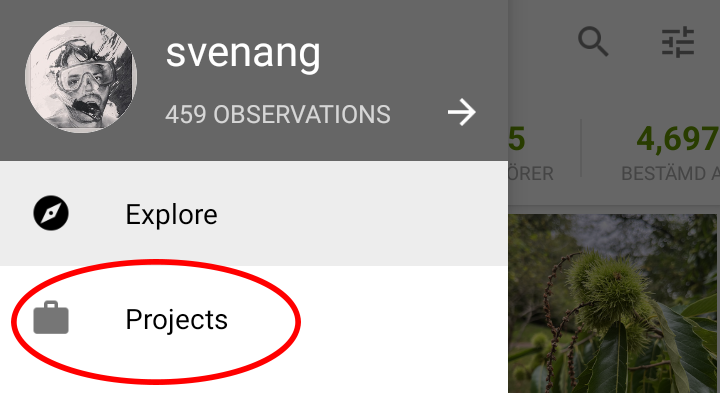
Find Projects under the Community tab and search for BiodivOcean.
Open the project and select Join.
The interface looks slightly different depending on whether you are using a computer or the app.

3. Report an observation
Reporting with the mobile app
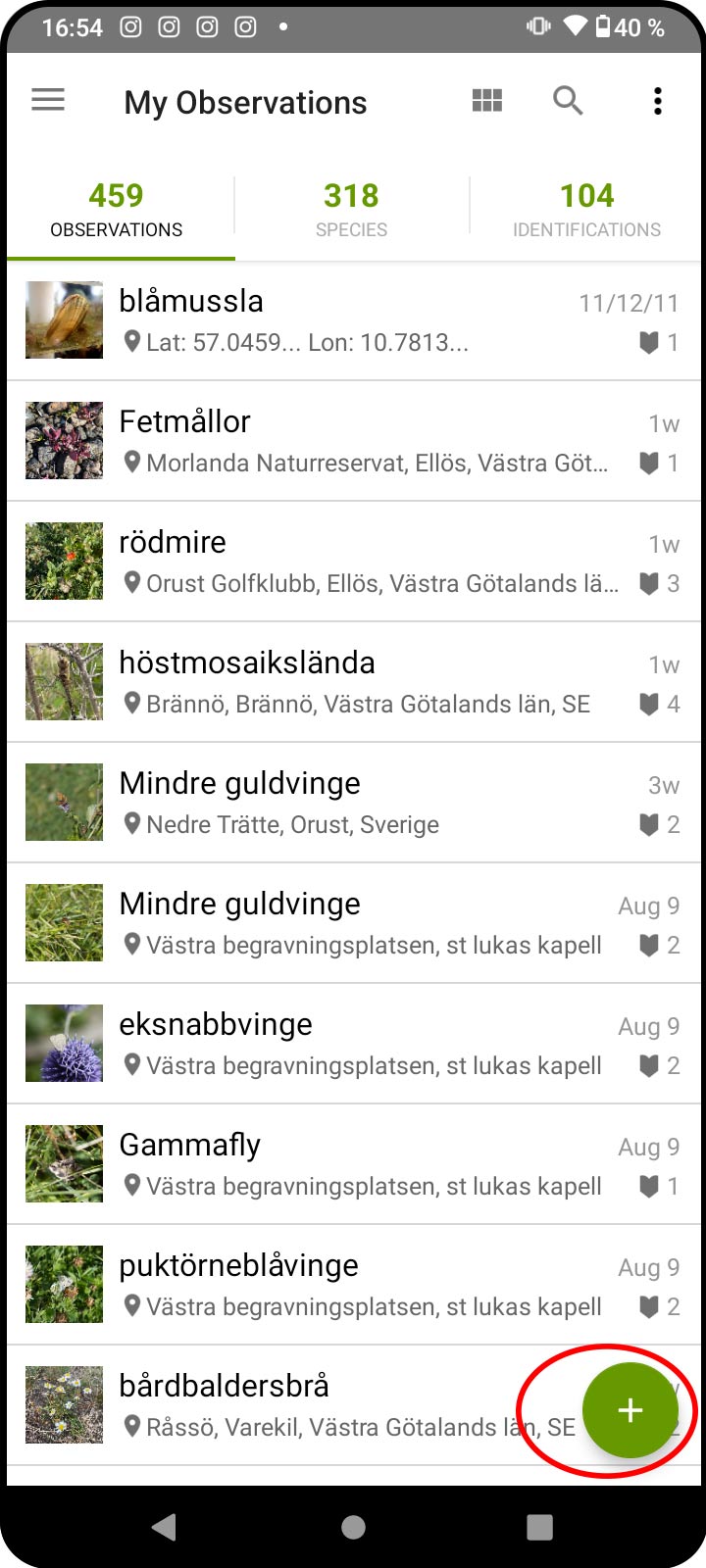
Photograph the species on the disc.
You can take the photo directly using the app or select a photo you have already taken from your photo library.
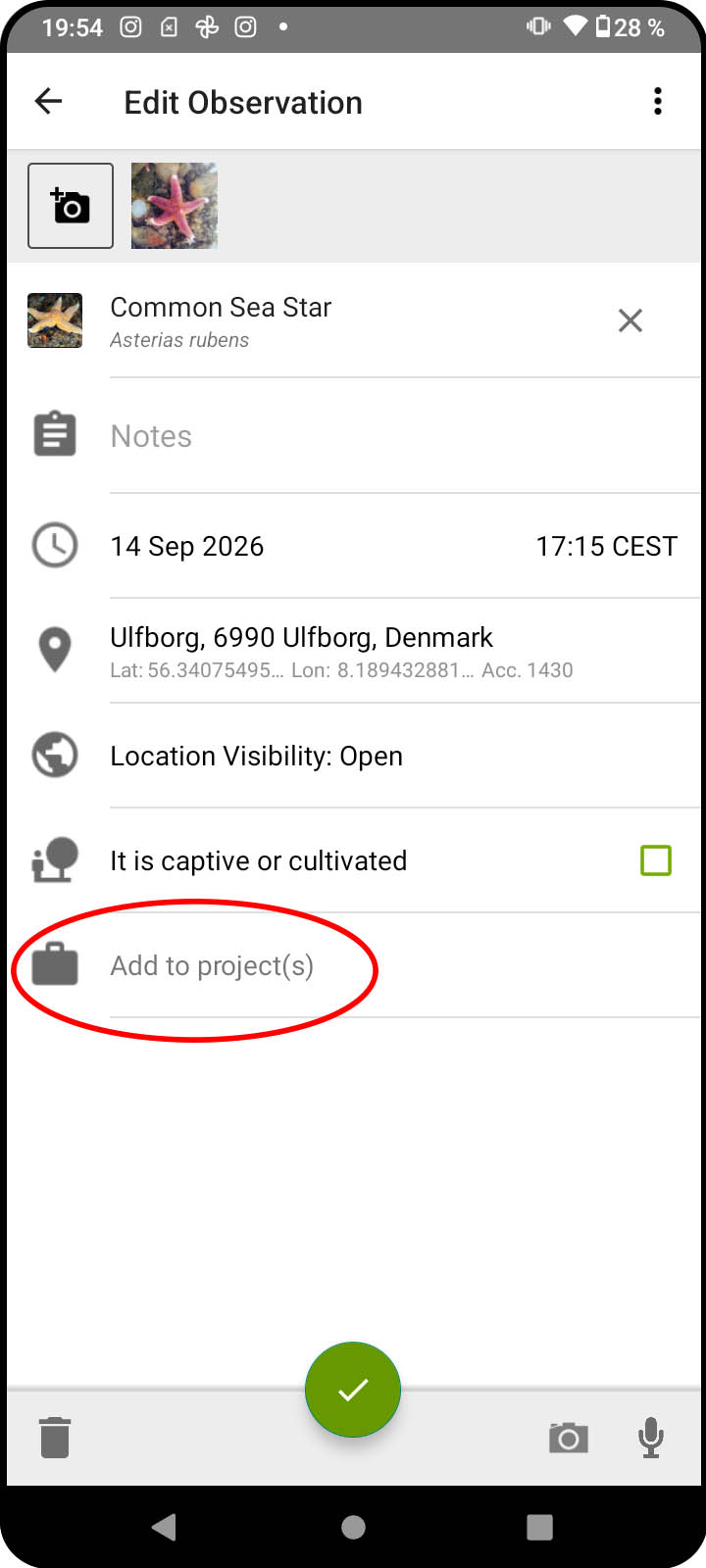
Enter the species name if you know it and add your observation to the BiodivOcean project. If you are unsure about the species, you can use the AI identification feature in iNaturalist to get suggestions for possible species.
Complete the additional BiodivOcean fields.
In the BiodivOcean project, we have added several extra fields for you to complete. These allow us to collect additional information about the conditions surrounding each observation that is important to the project. For example, we are interested in how long the rack has been in the water.
That's it!
If you open the project's page in the app, your observations should now appear there. After a short while, they will also appear on:
Reportingflow as a screencast
Reporting on a computer.
Login to your account on iNaturalist or MINKA
Click Upload or Add Observations.
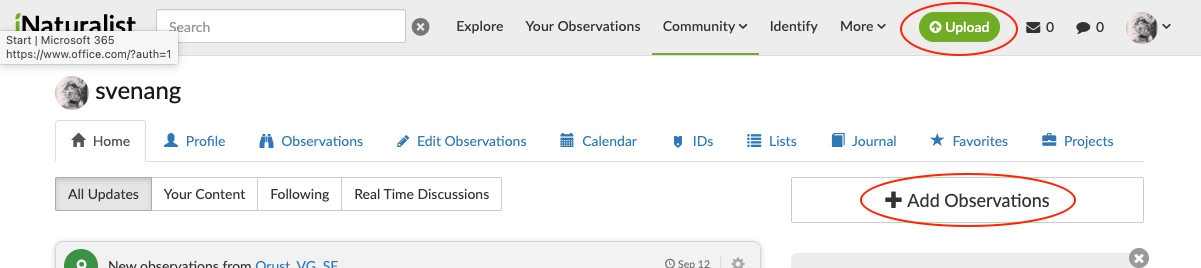
Enter the information about your observation:
(1) Enter the name of the species. In iNaturalist, the AI identification feature can help you with this.
(2) Enter the date if it has not been added automatically from the image metadata.
(3) Mark the location on the map if it has not been added automatically from the image metadata.
(4) Save the observation.
Your observation has now been created.
The next step is to add it to the BiodivOcean project.
Open the observation again (do not select Edit) and select the BiodivOcean project.
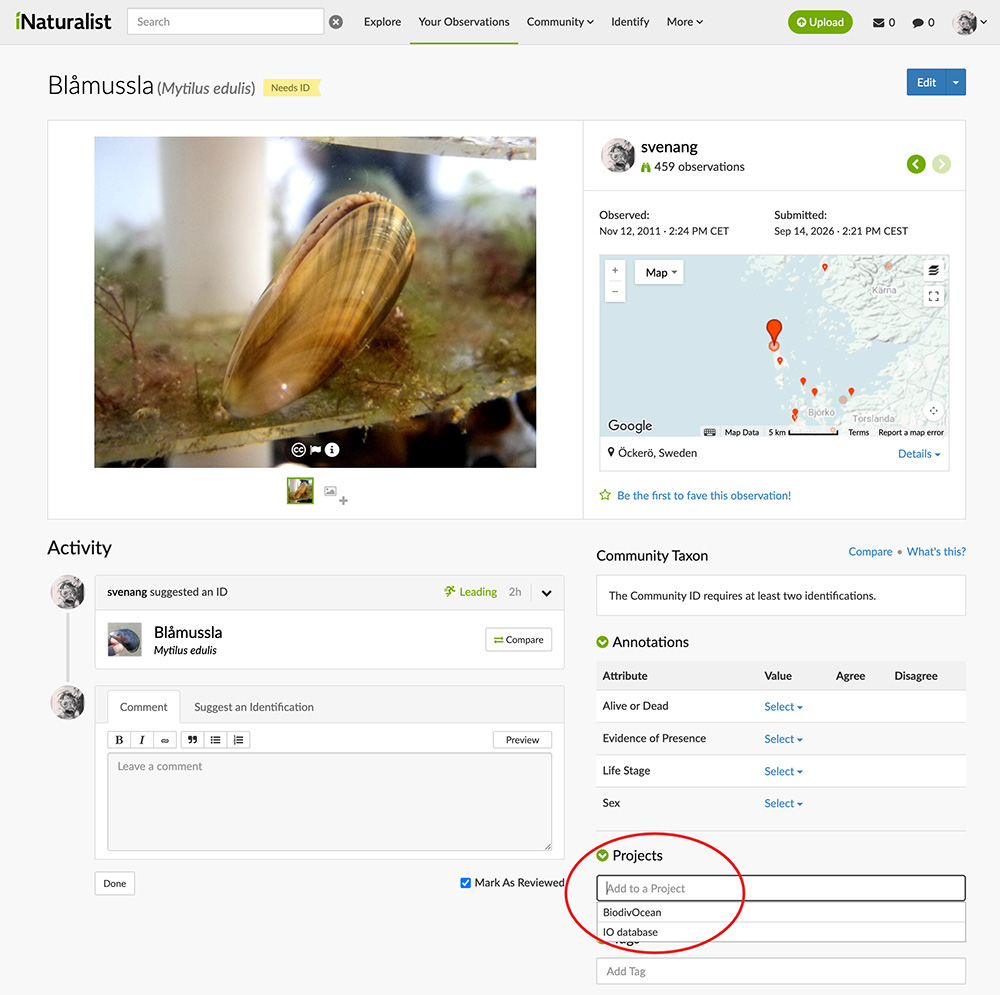
When you select the BiodivOcean project, the additional fields will appear. Complete these fields and save your changes.
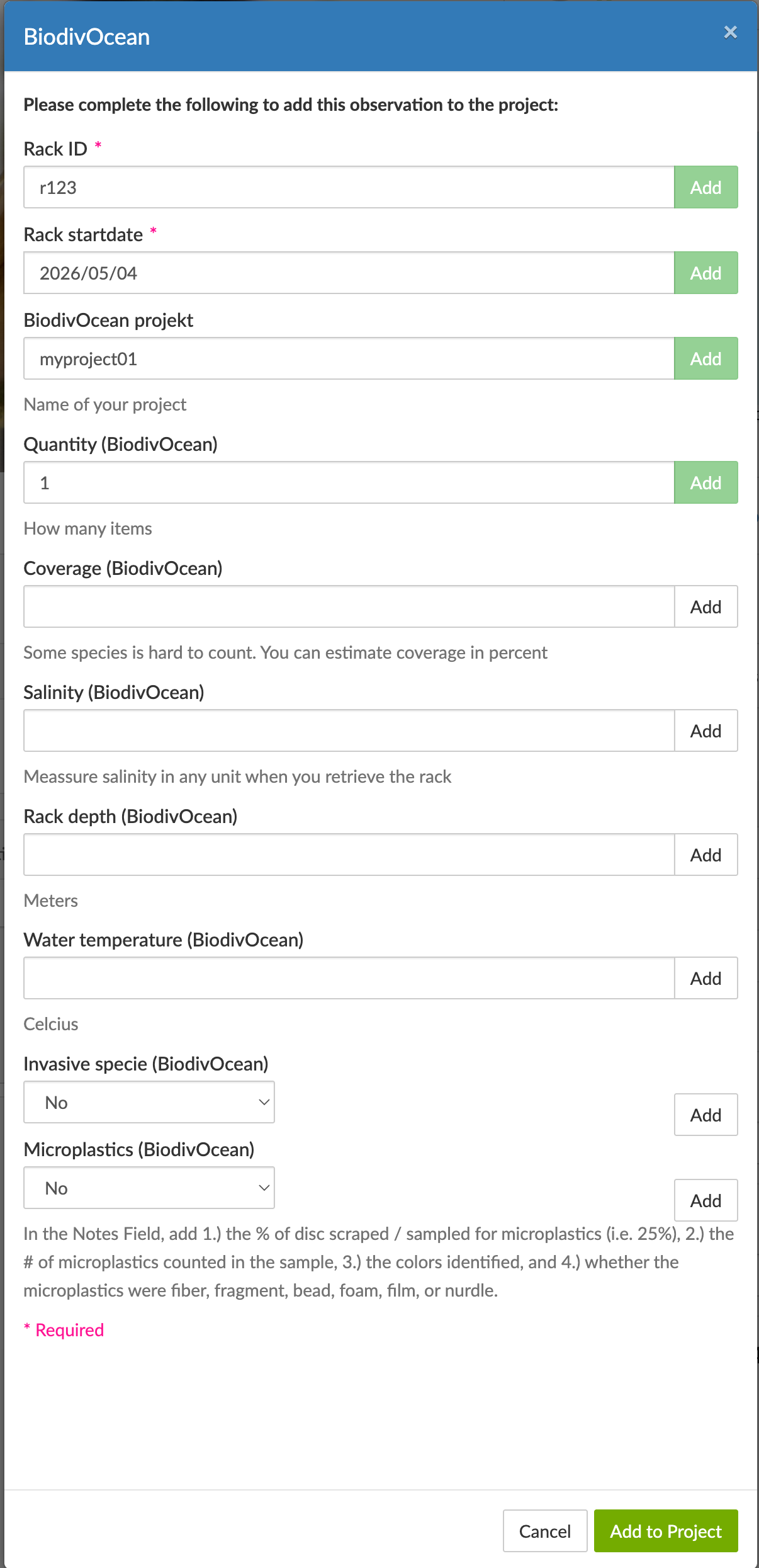
That's it.
The workflow is essentially the same in MINKA.


